A digital display for your store window, with TV mode
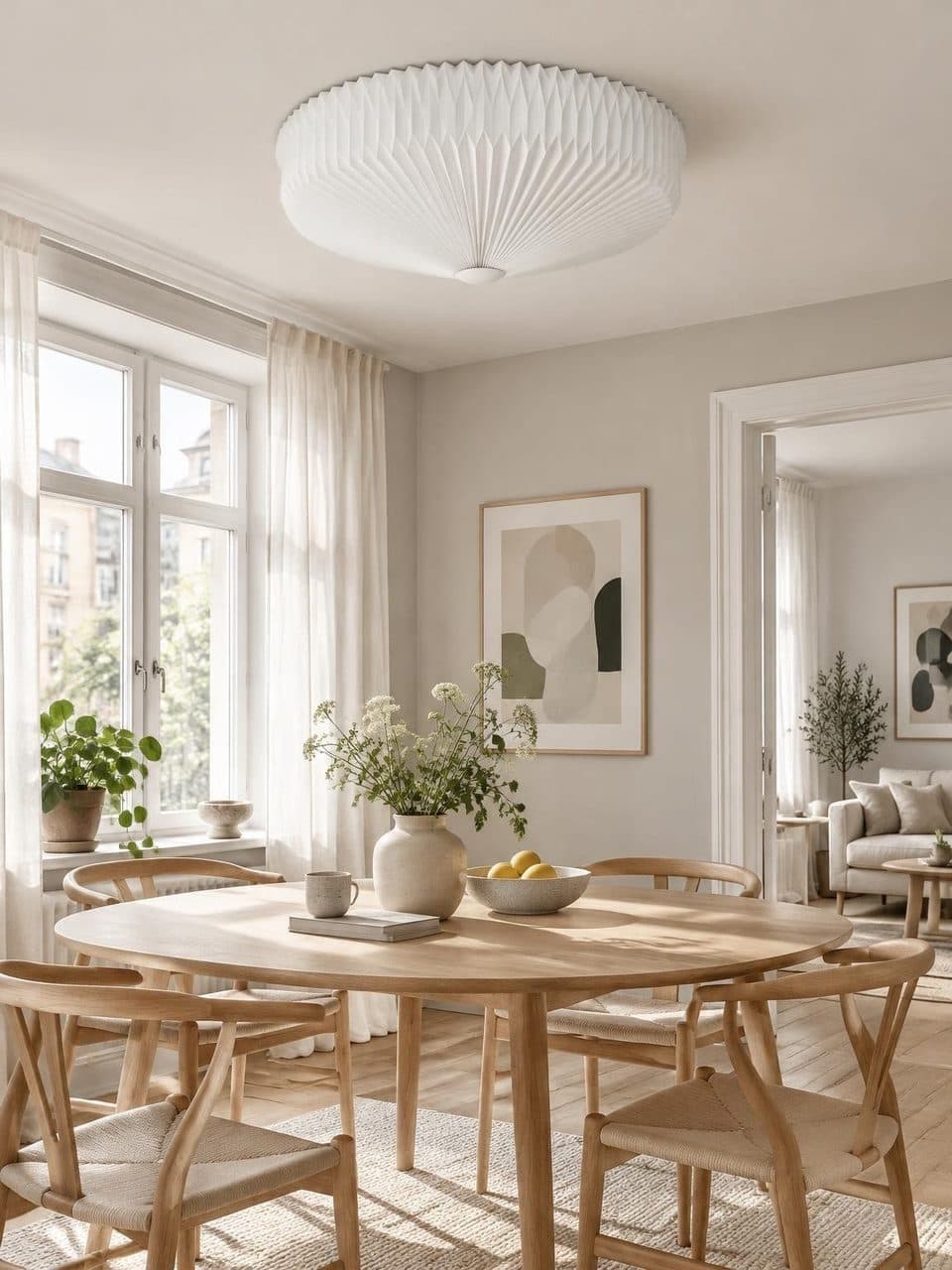
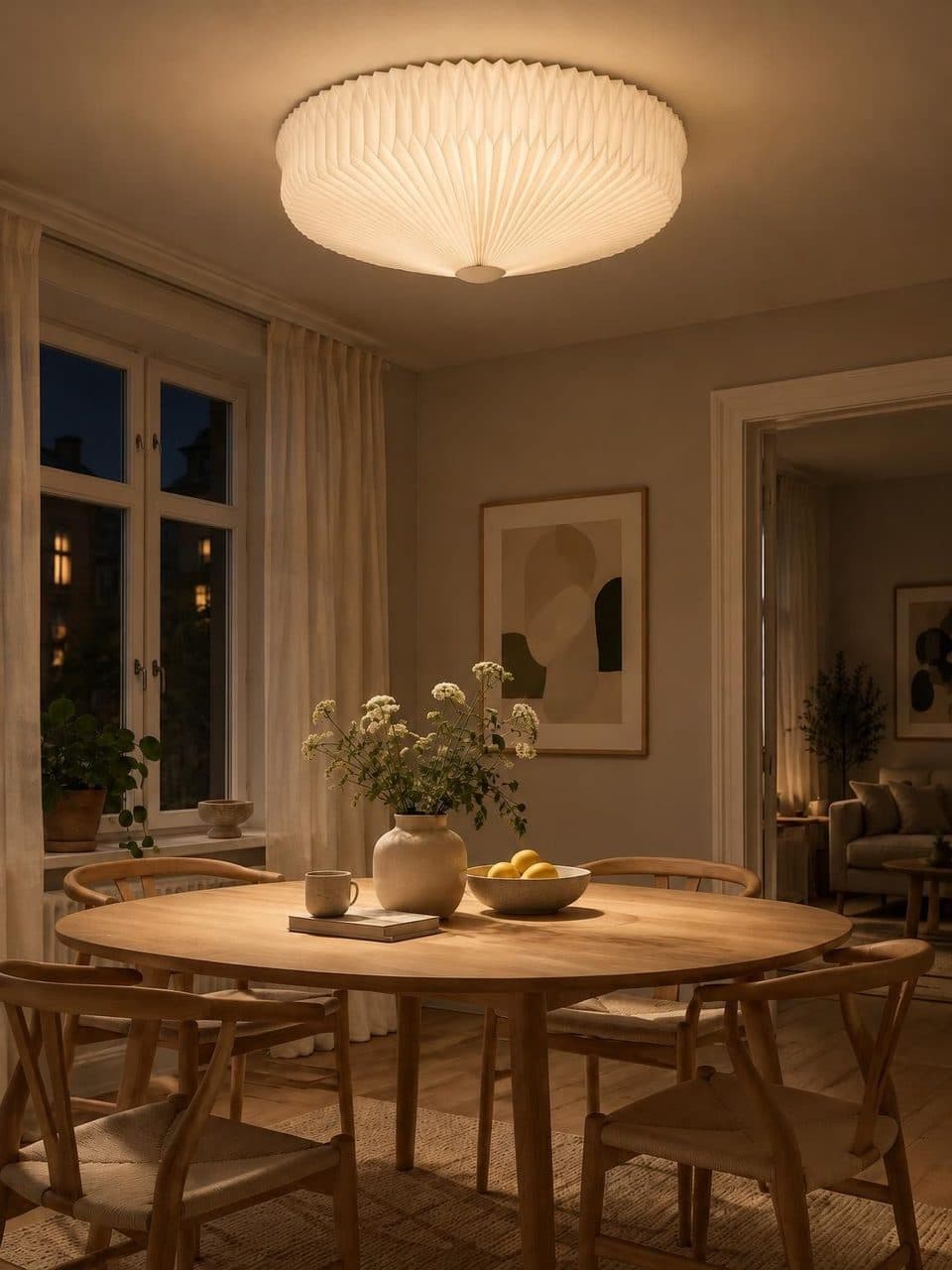
A TV in the window or on the sales floor shows your lamps one by one, first by day and then lit.
In short
TV mode turns your catalog into a digital display for a store window. You open it from your dashboard, it fills the screen, and it shows each lamp by day and then lit at night, with its type, name and price. Then it moves to the next lamp and starts over at the end. All you need is a TV and a browser.
What TV mode is for in your store
Window after hours
With the store closed, the screen keeps showing lit lamps to everyone walking past.
Sales floor
Lamps that don’t fit on display still get seen, staged in a room and priced.
Trade shows
One TV shows your whole catalog in the space of a table.
Waiting areas
At the register or wherever customers wait, the screen keeps showing products with nobody minding it.
How to put TV mode on a screen
- 1
Connect the screen
Use a computer plugged into the TV, or the TV’s own browser if it has one. Log in to your Lucy dashboard.
- 2
Open TV mode
Click the TV Mode button in your dashboard. It goes full screen and loads every image before it starts, with a progress bar.
- 3
Let it run
Each lamp appears by day, then lit, then moves on. The controls and cursor hide themselves when the mouse stays still.
- 4
Pause or exit
The space bar pauses, the arrow keys move between lamps, and the Escape key leaves full screen.
What the digital display for your store window shows
The image fills the center against a black background. Below it are the lamp type, name and price, in large type that reads from a distance. At the top, an indicator shows whether the scene is day or lit, and a counter shows which lamp is on screen out of the total.
The change from day to night is a soft crossfade, and the lit scene adds a warm glow. It’s the same day to night change as your online catalog, at TV size.
Which lamps appear in TV mode
TV mode cycles through every finished lamp in your catalog that has both scenes, in the same order as your dashboard, featured lamps first and then newest first. There’s no separate slideshow to build. What’s in your catalog is what plays on screen.
If you change a price or add a lamp, close TV mode and open it again so the screen picks up the new details.
Tips for a screen in the window
A window screen runs for hours without anyone watching it. A few simple precautions keep you from finding it asleep or showing another window.
- Turn off sleep mode and the screen saver on the computer.
- If the computer restarts, reopen TV mode from the dashboard.
- Keep direct sun off the screen, since it washes out the image during the day.
- At night, the lit scenes stand out more with the window lights dimmed.
Frequently asked questions
What do I need to use TV mode?
A TV or monitor and a device with a browser connected to it, like a computer on a cable or the TV’s own browser. Log in to your Lucy dashboard and click TV Mode. There’s nothing to install.
Can I choose which lamps appear?
Not at the moment. TV mode cycles through every finished lamp in your catalog that has a day and a night scene, and there’s no separate selection for the screen. The order matches your dashboard, so the lamps you pin as featured play first.
How long does each lamp stay on screen?
A few seconds by day and the same again lit, then it moves to the next one. The pace is fixed. To linger on a lamp, pause with the space bar or the pause button, and step forward or back with the arrow keys.
Does it show prices?
Yes, when the lamp has a price. It appears under the name, in pesos or dollars depending on each product’s currency. Lamps without a price show their type and name only.
Does TV mode cost extra?
No. It’s part of the single US$20 monthly plan, along with the online catalog, the QR code, WhatsApp inquiries, price adjustments and analytics. There’s no special plan for using it in the store.
Keep reading
- FeaturesStore QR codeA QR code with your logo that opens your catalog. Download it to print for the window, the counter or a bag.
- FeaturesDay and nightEvery lamp in a real room, switched off by day and lit at night, one tap apart.
- Who it’s forHome decor storesYour lamps in a room that matches your store, by day and lit at night.
Your catalog, by day and lit at night
We migrate your catalog, stage every lamp, and you edit prices whenever you want.