See a lamp lit before buying, at night in a real room
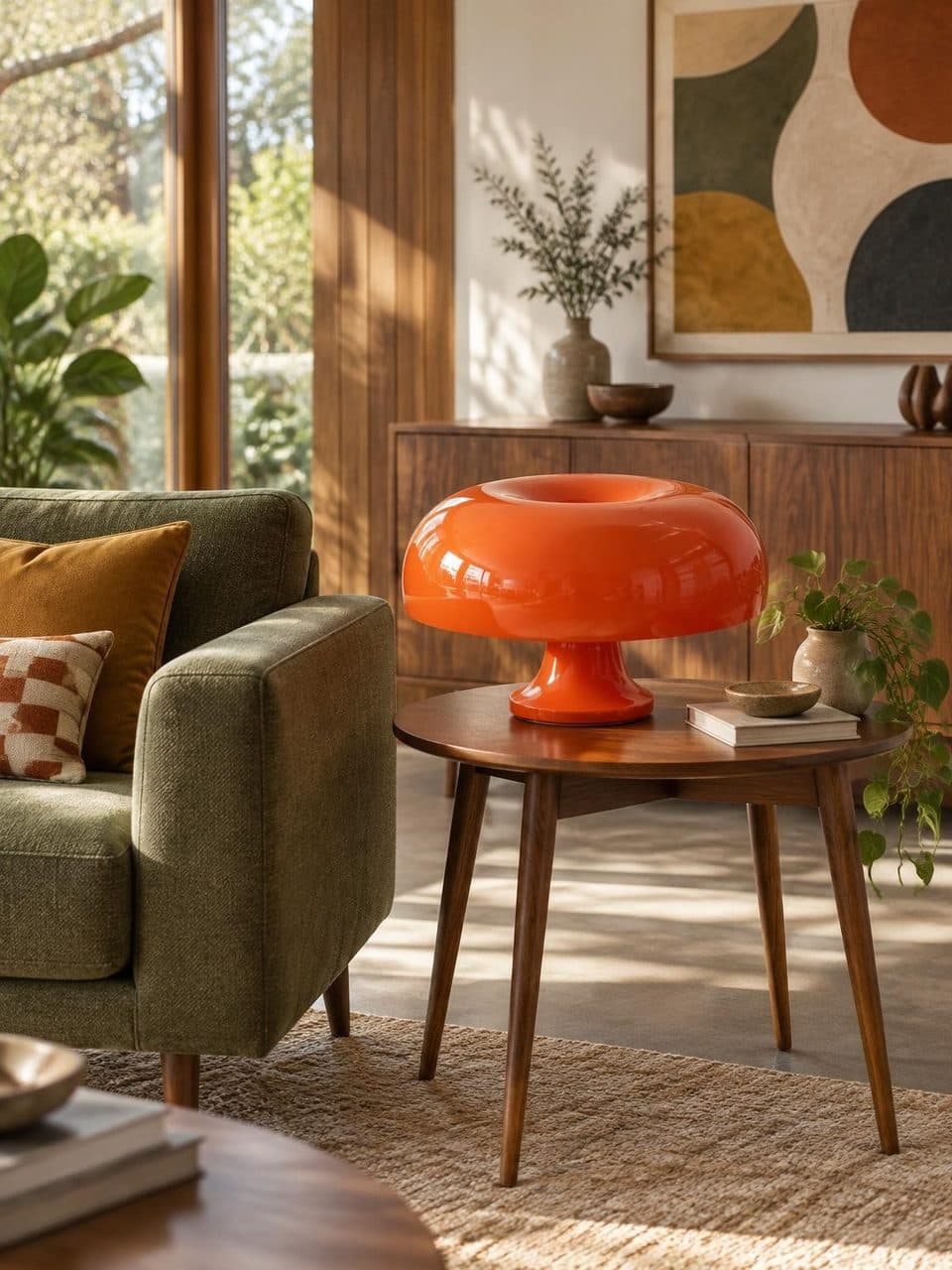
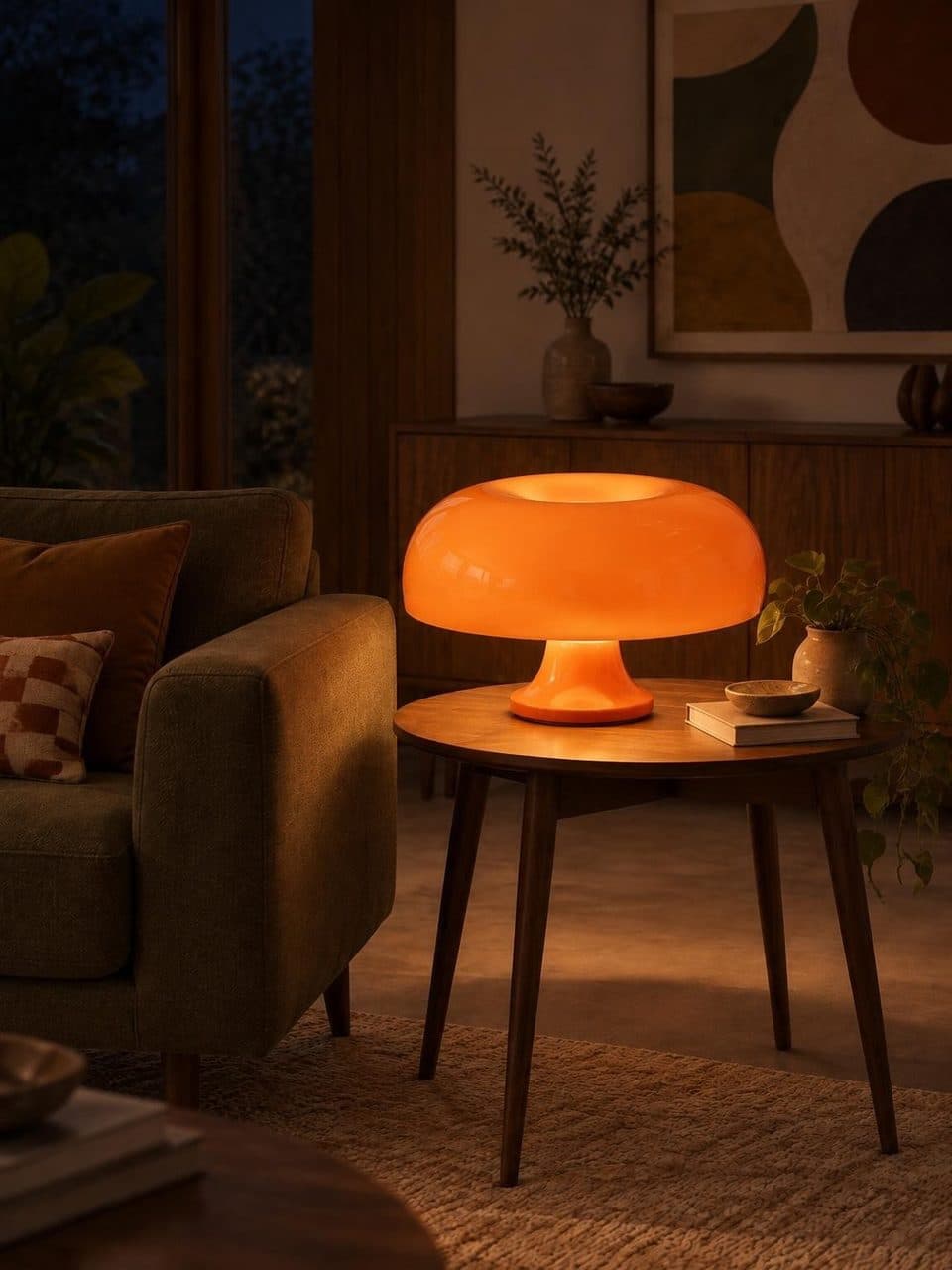
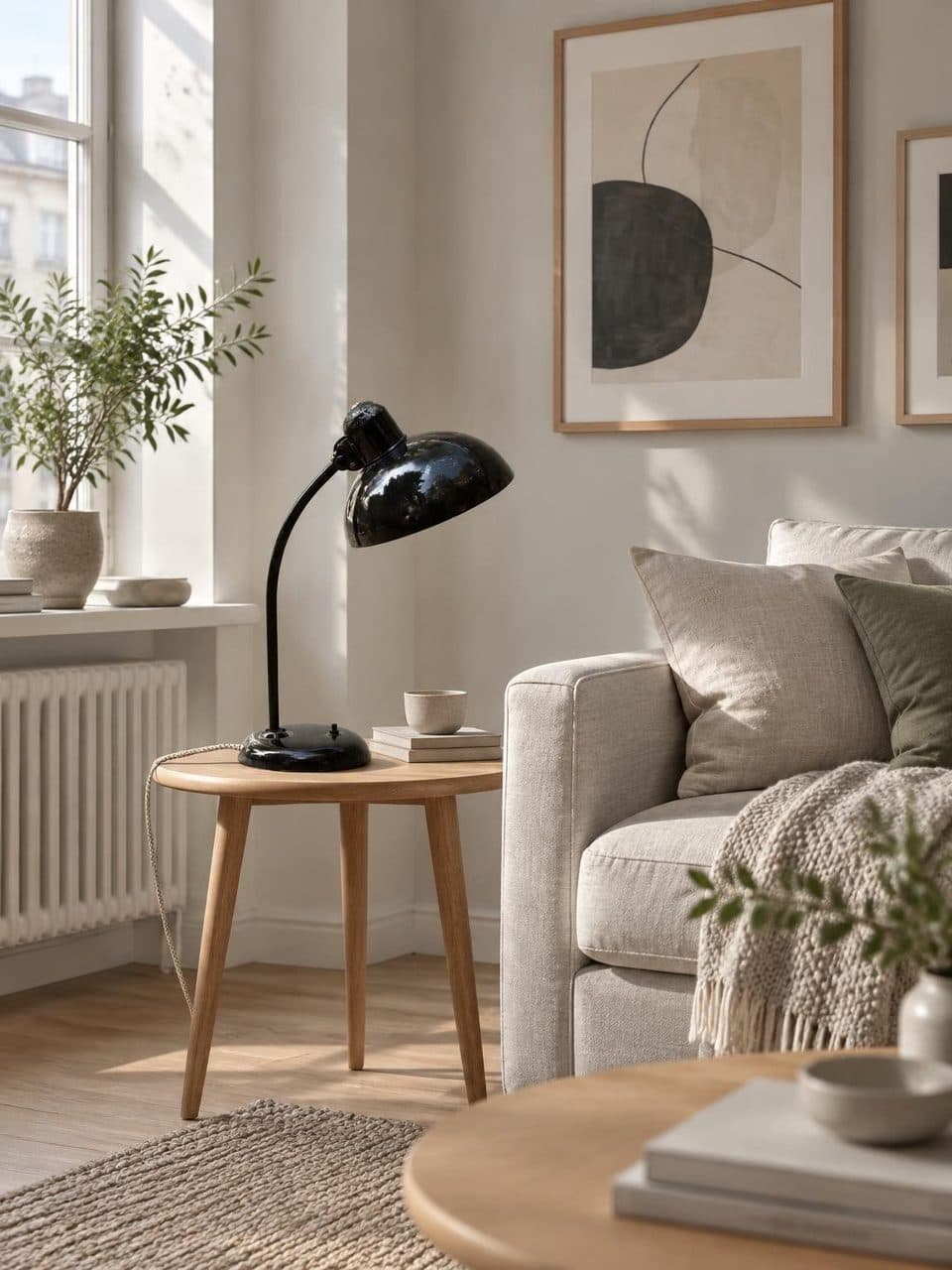
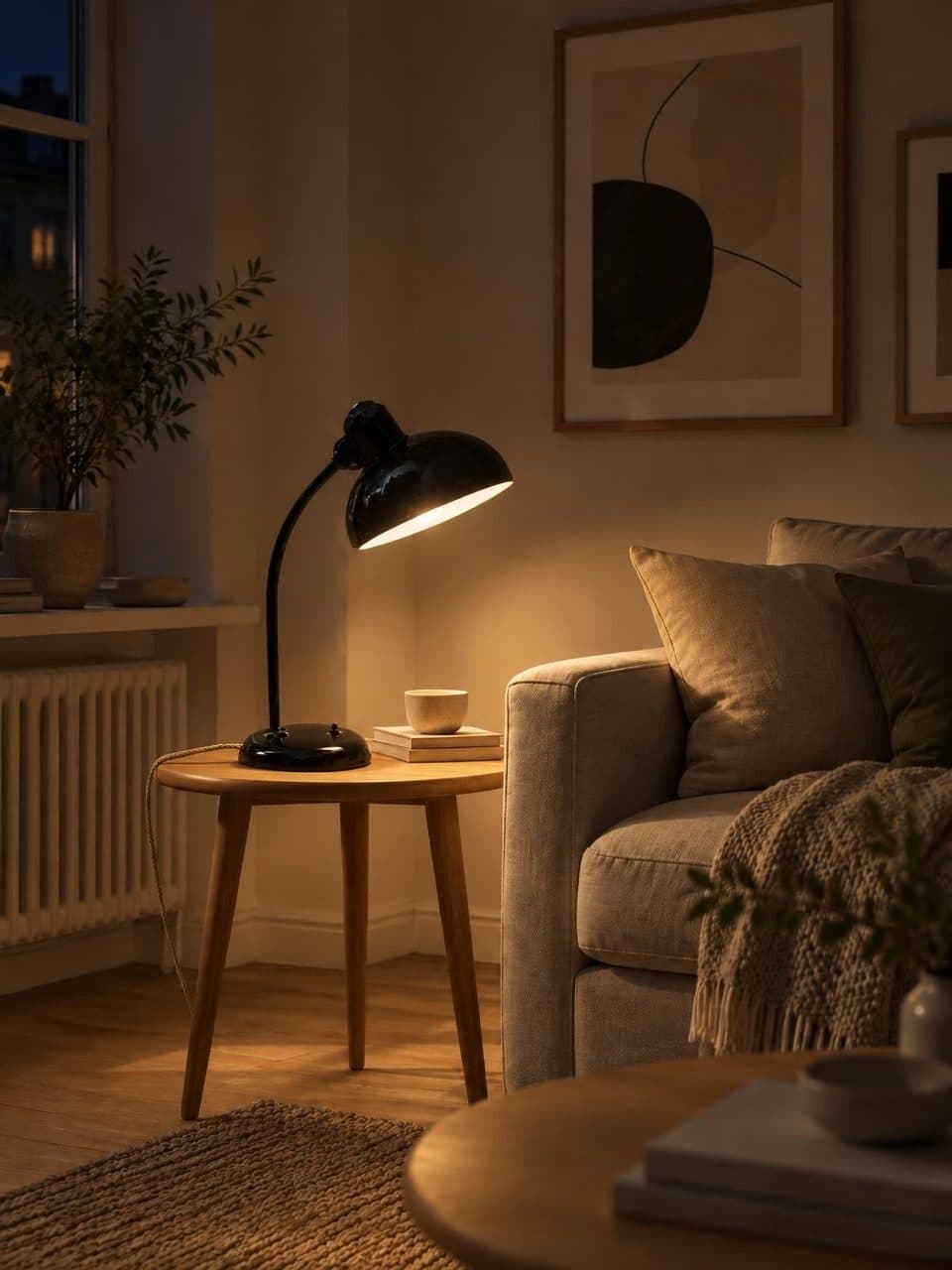
A catalog photo shows a lamp switched off against a white background. Lucy places it in a room and lets your customer turn it on.
In short
To let shoppers see a lamp lit before buying, Lucy shows every product in your catalog in two scenes of the same room, one by day with the lamp off and one at night with the light on. Customers flip between them with a switch, on the catalog page and on each lamp’s own page. The Lucy team creates both scenes from your product photo.
What the lit scene shows
How the light spreads
A fabric shade spreads light sideways. A metal shade pushes it down. Once the lamp is on, the difference is obvious without a word of explanation.
Scale in a real room
Next to an armchair, on a nightstand or hanging over a dining table, the lamp appears among furniture instead of floating on white.
The mood after dark
People choose a lamp for how it looks when it’s on, and that happens after dark. The night scene shows the mood it creates in a room.
What a studio photo leaves out
A studio photo can’t show what a lamp looks like when it’s on. The night scene shows it before the customer has to ask.
How the day and night switch works
- 1
Your product photo
We start from the photo you already have of each lamp. It’s the reference for keeping its shape, color and materials.
- 2
Two scenes of one room
The Lucy team creates a daytime scene with the lamp off and a nighttime scene with the light on, in the decor style you pick.
- 3
One switch for the catalog
Your catalog has a switch that stays on screen. Tap it and every photo turns to night while the whole page goes dark.
- 4
One more on each lamp page
Each lamp’s page has its own switch next to the large photo, so customers can compare both scenes up close.
Why it helps to see a lamp lit before buying
Switched off, a lamp is an object. Switched on, it’s light, and light changes everything around it. An opaque shade sends light up and down and leaves the walls in shadow. An opal glass globe spreads soft, even light in every direction.
Those differences decide a purchase, and they rarely show up in a studio photo. In the store, a salesperson turns the lamp on and the customer sees it working. Online, the night scene does that job.
What changes between the day and night scenes
By day, the room is lit by its windows. The lamp reads as an object, with its shape, its finish and its size next to the furniture. At night, the same room goes dark and the lamp becomes the light source.
When the switch is tapped, the photos crossfade and the page takes on its night colors. Customers compare both versions without leaving the page or losing their place in the catalog. You choose whether your store opens by day or with the lights already on.
The photo you need for the scenes
The product photo you already use on your website or social media is enough. The sharper and more complete the lamp looks, the better its shape, color and materials carry over into the room.
You don’t need photos of the lamp lit or a styled shoot in a living room. The scenes are generated with AI from your photo, the Lucy team makes them when it migrates your catalog, and you choose from five decor styles.
- Nordic
- Japandi
- Industrial
- Mid-century
- Parisian
What the night scene doesn’t replace
The scenes show how a lamp looks in a room and what kind of light it gives. They aren’t a measurement. Details like the bulb it takes, its wattage or its color temperature belong in the product description, which customers read on the same page.
Frequently asked questions
Do customers need to install anything to see a lamp lit?
No. The switch works in the browser on a phone or a computer, right inside your store’s catalog. Customers arrive through your link or QR code and turn lamps on and off without signing up or downloading an app.
How many images does each lamp get?
Two scenes of the same room, one by day with the lamp off and one at night with the light on. Both are created from the product photo you already have, and they cost nothing extra because they’re part of the US$20 monthly plan.
Does the lamp in the scene look exactly like the real one?
The scenes start from your photo and aim to keep the lamp’s shape, color and materials. They’re a depiction in a room, not a photograph of the product in someone’s home. That’s why a sharp starting image, with the whole lamp in frame and well lit, matters.
Can I choose the room my lamps appear in?
Yes. There are five decor styles, Nordic, Japandi, Industrial, Mid-century and Parisian. Pick the one closest to your lighting store’s customers. If none fits your brand, you can ask for a custom setting for your whole catalog.
Does the switch change the whole catalog or one lamp at a time?
Both. The store’s switch turns every photo to night and darkens the page. On a computer, hovering over a lamp lights that one alone. And each lamp’s page has another switch next to the large photo, for a close look at it by day and at night.
Keep reading
- StylesMid-century modernOpal glass, curves, walnut and one bold color. How to choose mid-century lamps and where to place them.
- FeaturesOnline catalogYour lamps at your own address, in your colors, with search, type filters and a page for every product.
- GuidesLamp color temperatureWhat 2700 K, 3000 K, 4000 K and 6500 K mean, which suits each room and how to explain it.
Your catalog, by day and lit at night
We migrate your catalog, stage every lamp, and you edit prices whenever you want.